What is MIDI? A beginner’s guide to musical data
If you’ve ever dragged a piano-roll clip around in a DAW and thought, “Wait… where’s the sound?” you’ve already bumped into the core idea behind what is MIDI?.
MIDI is musical control data, not audio. It’s the set of instructions that tells an instrument (hardware or software) what to play, when to play it, and how to perform it – while you stay in charge of every note, every timing choice, every edit. In plain terms: MIDI = performance directions, and Audio = the recorded result.
This guide will walk you through the essentials – from MIDI definition and how it works, to MIDI controllers, MIDI vs audio, and real-world workflows.
And because a lot of modern production blends DAWs with specialist tools, you’ll also see where MIDI fits inside ACE Studio – including vocals, choir writing, and AI instruments – without handing your creative decisions to “automation.”
What is MIDI?
MIDI stands for Musical Instrument Digital Interface. But the part that matters is “interface” – MIDI is a common language that lets gear and software talk about music performance.
MIDI is not sound
A MIDI clip doesn’t contain a waveform. It contains events like:
- Note number (which key)
- Start time (when it happens)
- Duration (how long it lasts)
- Velocity (how hard it’s played – often mapped to volume or brightness)
- Control changes (like mod wheel, sustain pedal, filter cutoff)
That’s why “midi music” can mean very different things depending on the instrument receiving it. The same MIDI file can trigger a soft felt piano, a huge synth stack, a string ensemble, or a choral patch – because the sound lives in the instrument, not the MIDI.
What is a MIDI device?
A “MIDI device” is anything that sends, receives, or processes MIDI data: keyboards, pad controllers, wind controllers, grooveboxes, DAWs, and even lighting rigs. If it can interpret musical messages, it can be part of a MIDI setup.
What is a MIDI file?
A MIDI file (usually .mid) is a portable container for those performance instructions. It’s like a score for machines: notes, timing, tempo info (sometimes), and track/channel data. You can move it between apps to keep the musical intent while swapping the sound source.
How MIDI works
At the heart of “how does MIDI work” is a simple loop:
- A performer or sequencer creates MIDI events
- Those events travel through a connection (USB, DIN, network, virtual MIDI)
- A receiving instrument or plugin translates events into sound
- You edit the data to refine the performance
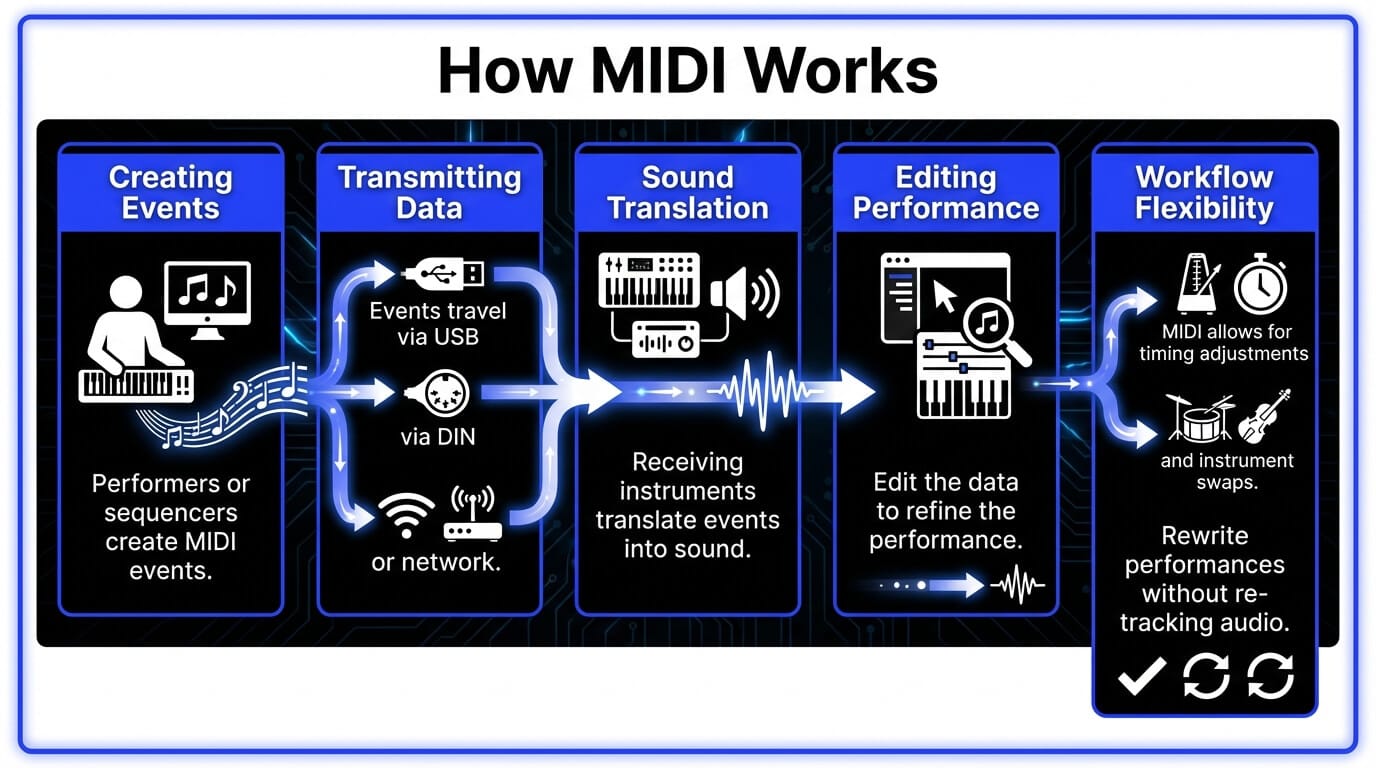
In production, this is why MIDI is so powerful: you can rewrite the performance after recording. Tighten timing, re-voice chords, change the groove, or completely swap the instrument – without re-tracking audio.
MIDI messages explained
MIDI messages are the “sentences” MIDI uses. The most common:
- Note On / Note Off: start and stop a note
- Velocity: attached to Note On – often mapped to dynamics
- CC (Control Change): knobs/sliders like mod wheel (CC1), expression (CC11), sustain pedal (CC64)
- Pitch Bend: continuous pitch movement (great for slides and vibrato-style moves)
- Program Change: switch presets/sounds
MIDI channels explained
Classic MIDI has 16 channels. Channels help you route different parts:
- Channel 1: lead
- Channel 2: bass
- Channel 10: drums (a common convention)
- Channel 3–4: pads and harmony layers
In a DAW, channels can matter a lot when you’re driving multi-timbral instruments (one plugin hosting multiple sounds). In bigger setups, channels keep your rig organized – especially live.
MIDI vs audio
This is the fork in the road every beginner hits: MIDI vs audio is not “which is better,” it’s “which stage of the process are you in?”
MIDI and audio represent two different “layers” of a track. MIDI doesn’t contain sound – it’s just instructions: which notes to play, when to play them, how hard they hit (velocity), and any performance controls (like sustain or modulation). That’s why MIDI is so flexible.
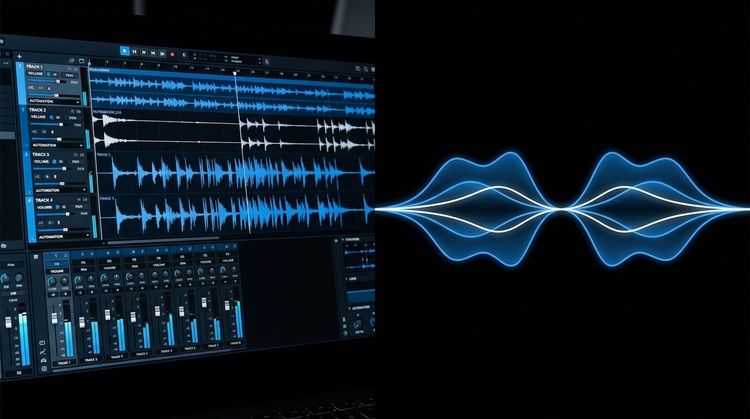
If you decide the chord voicing is off, the bass note should move, or the groove needs tightening, you can change it directly in the piano roll. You can also swap the instrument instantly, because the sound isn’t baked in yet – the same MIDI can drive a piano, a synth, or a string library without re-recording anything. MIDI can capture nuance too, but only if you perform or program that nuance (velocity, CC automation, timing). In other words, MIDI gives you editable intent.
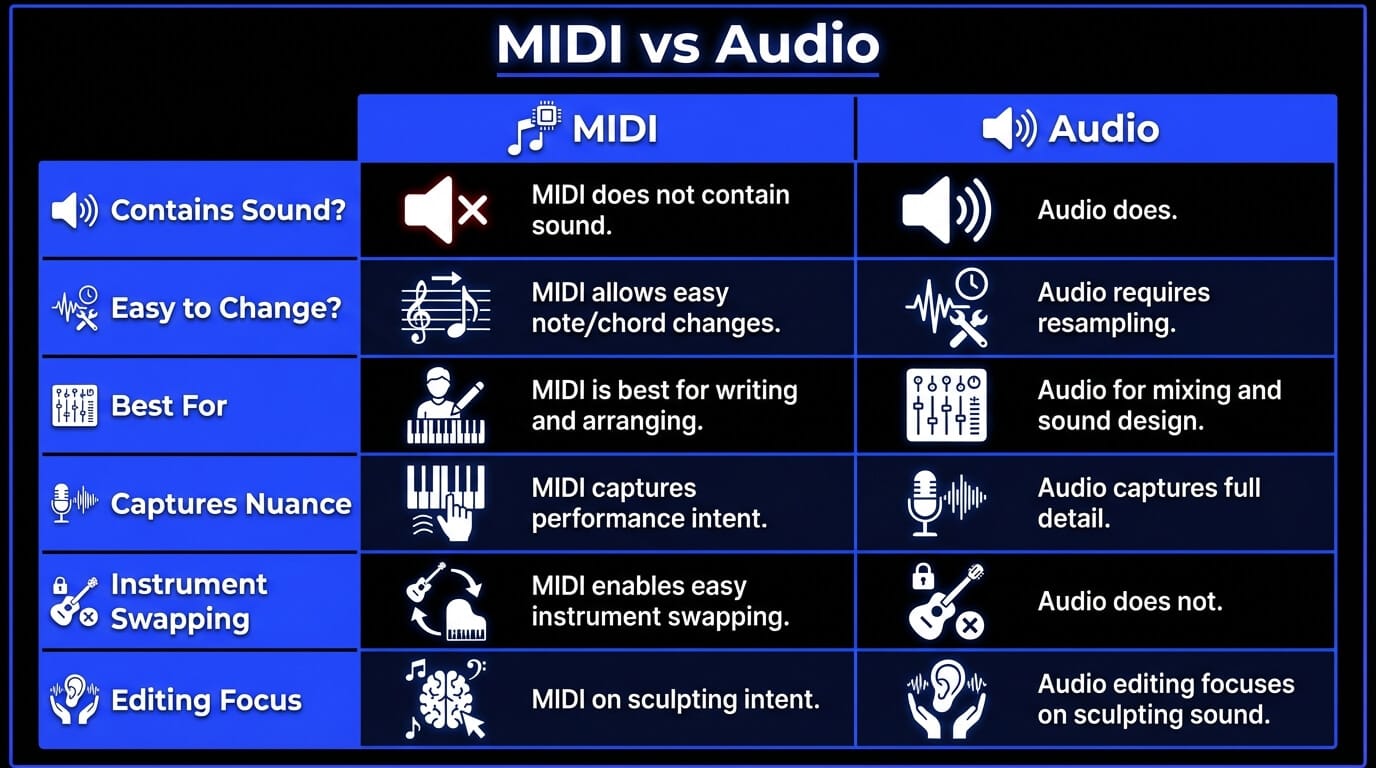
Audio is the result – a recorded waveform. It’s the “printed” version of a performance, whether it came from a microphone or from bouncing a virtual instrument. Because audio is literally a recording, it captures full detail: micro-dynamics, tone, texture, and all the messy realism that makes things feel alive.
The tradeoff is that you can’t just “change a note” the way you can in MIDI. You can manipulate audio with tools (time-stretching, pitch correction, slicing, resampling), but it’s a different kind of editing — more like sculpting sound than rewriting the performance.
That’s why producers often write and arrange in MIDI, then commit to audio when they’re ready to mix, design, and finalize. This lets them keep creative flexibility early, and stability later.
What is MIDI used for?
MIDI shows up everywhere because it’s small, flexible, and speaks the same language across gear and software. It lets you write and rewrite musical ideas fast – notes, chords, groove, dynamics, and automation – without committing to a final sound too early. That’s why MIDI powers everything from DAW piano rolls and drum programming to live rigs, synth hardware, and even lighting cues: you keep the performance editable, and choose the instrument (or sound) later.
MIDI in music production
In the studio, MIDI is your control layer:
- Writing chord progressions fast
- Auditioning different synths and samplers
- Building drum patterns and fills
- Driving arpeggiators, step sequencers, and generative tools
- Automating movement (filters, reverb sends, saturation drive)
A small mindset shift helps: record MIDI like you’re capturing a rough performance – then refine it like an editor. You decide where it’s tight, where it breathes, where it pushes.
MIDI in live performance
Live, MIDI is routing and control:
- Changing patches across multiple instruments
- Triggering clips or backing parts
- Syncing tempo-based effects (delays, LFOs)
- Controlling lights/visuals with notes or CC data
This is where MIDI’s “no-audio” nature is a feature: it’s stable and predictable, and it keeps your performance system modular.
MIDI in film, games, and automation
In media scoring and interactive audio, MIDI often controls:
- Orchestral mockups before recording
- Layered instrument switching (soft vs aggressive articulations)
- Adaptive music systems (game states triggering musical changes)
- Automation systems tied to timeline events
Even when the final delivery is audio, MIDI is frequently the sketchpad that gets you there.
What is a MIDI controller?
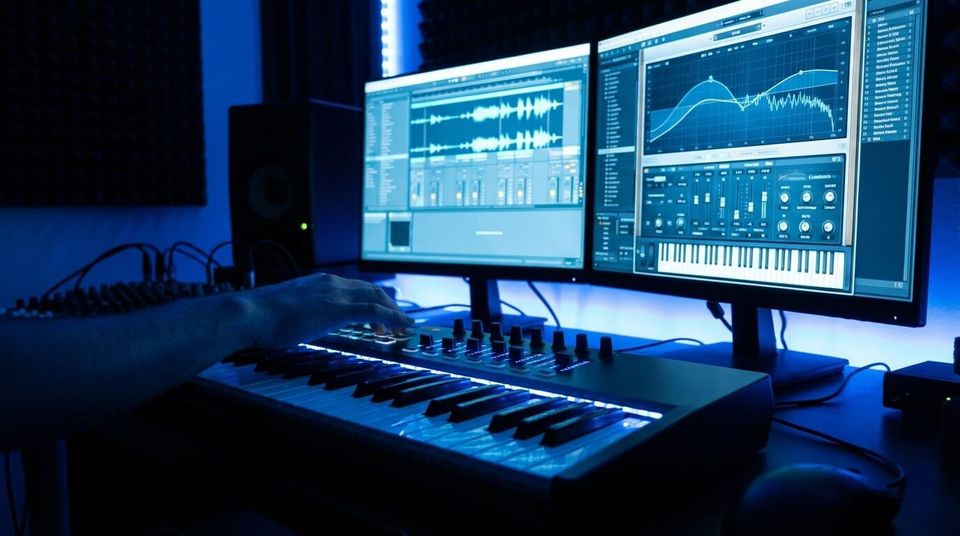
A MIDI controller is any device built to perform or shape MIDI data. It might feel like an instrument, but its main job is sending messages – you choose what receives them.
MIDI keyboards
Keyboard controllers are the standard entry point because they map naturally to harmony and melody. Useful features:
- Velocity-sensitive keys
- Mod wheel / pitch wheel
- Aftertouch (on some models)
- Transport controls for your DAW
Even a basic 25-key controller can handle writing basslines, chord stabs, and toplines.
Pad controllers
Pads are built for rhythm and triggering:
- Finger drumming
- Clip launching
- One-shot samples
- Mute/solo performance control
Pads can also be mapped to chords or scales for faster writing if you’re not a pianist.
Control surfaces
These are mix-oriented controllers – faders, knobs, transport. The power here is tactile mixing and automation writing:
- Ride a vocal send into a chorus
- Push a filter sweep by hand
- Automate mutes and transitions like a performance
Other MIDI controllers
This category keeps growing:
- Wind controllers
- MPE controllers (for expressive, per-note control)
- Guitar MIDI systems
- Foot controllers
- Custom MIDI knobs and DIY devices
The best controller is the one that disappears when you’re in flow – it should feel like an extension of your decisions.
What you need to use MIDI
You don’t need a big setup – you just need a clear path for MIDI data to travel from your input to something that makes sound.
- A way to enter notes: a MIDI controller is optional but speeds things up, and you can also program notes with a mouse in the piano roll or use a computer keyboard as a virtual controller.
- Something to record and edit MIDI: a DAW is where MIDI gets captured and edited, so you can adjust timing, change notes/chords, and shape dynamics.
- Something that turns MIDI into sound: a virtual instrument (or hardware synth) interprets MIDI and generates audio – this is where your “MIDI instruments” live, like synths, samplers, drum machines, and orchestral libraries.
- A connection for MIDI to travel:
- USB MIDI (most modern controllers)
- 5-pin DIN (older hardware + many pro rigs)
- Bluetooth MIDI (some devices)
- Virtual MIDI (routing inside your computer between apps)
- Basic routing + monitoring: make sure the device is recognized, routed to the correct track, and monitoring is on – then you’re ready to play and record
How to use MIDI
Instead of wrestling with settings, you’re probably just trying to get from idea to a playable track. The good news is the workflow is basically the same in every DAW: you set up a MIDI/instrument track, route your controller (or draw notes), record a rough performance, then edit timing, notes, and expression until it feels right. Once the part is doing what you want musically, you can keep it as MIDI for flexibility – or commit it to audio when you’re ready to mix and finalize.
- Create a MIDI track
Create a MIDI/instrument track, insert your instrument plugin, and set the input (controller or “all inputs”). Arm the track.
- Record MIDI notes
Hit record and play. Don’t chase perfection on the first pass. Capture the idea, then shape the feel.
- Edit MIDI notes
This is the “producer’s advantage” of MIDI:
- Fix wrong notes
- Re-voice chords
- Adjust note lengths to tighten groove
- Quantize lightly (or not at all)
- Humanize timing where it needs breath
- Use MIDI automation
Automation is how MIDI becomes expressive:
- CC1 (mod wheel) for dynamics
- CC11 (expression) for shaping phrases
- Sustain pedal (CC64) for performance realism
- Filter sweeps, delay throws, reverb rides
Write automation like a performance, not like a math problem.
- Convert MIDI to audio
When you’re ready to commit:
- Freeze/flatten the instrument track (DAW feature)
- Bounce in place
- Export stems
This is where you lock the sound and move into mix decisions.
MIDI in ACE studio workflows
ACE Studio is a useful example of why MIDI still matters – because MIDI keeps control in the hands of the musician.
MIDI and lyrics as performance input
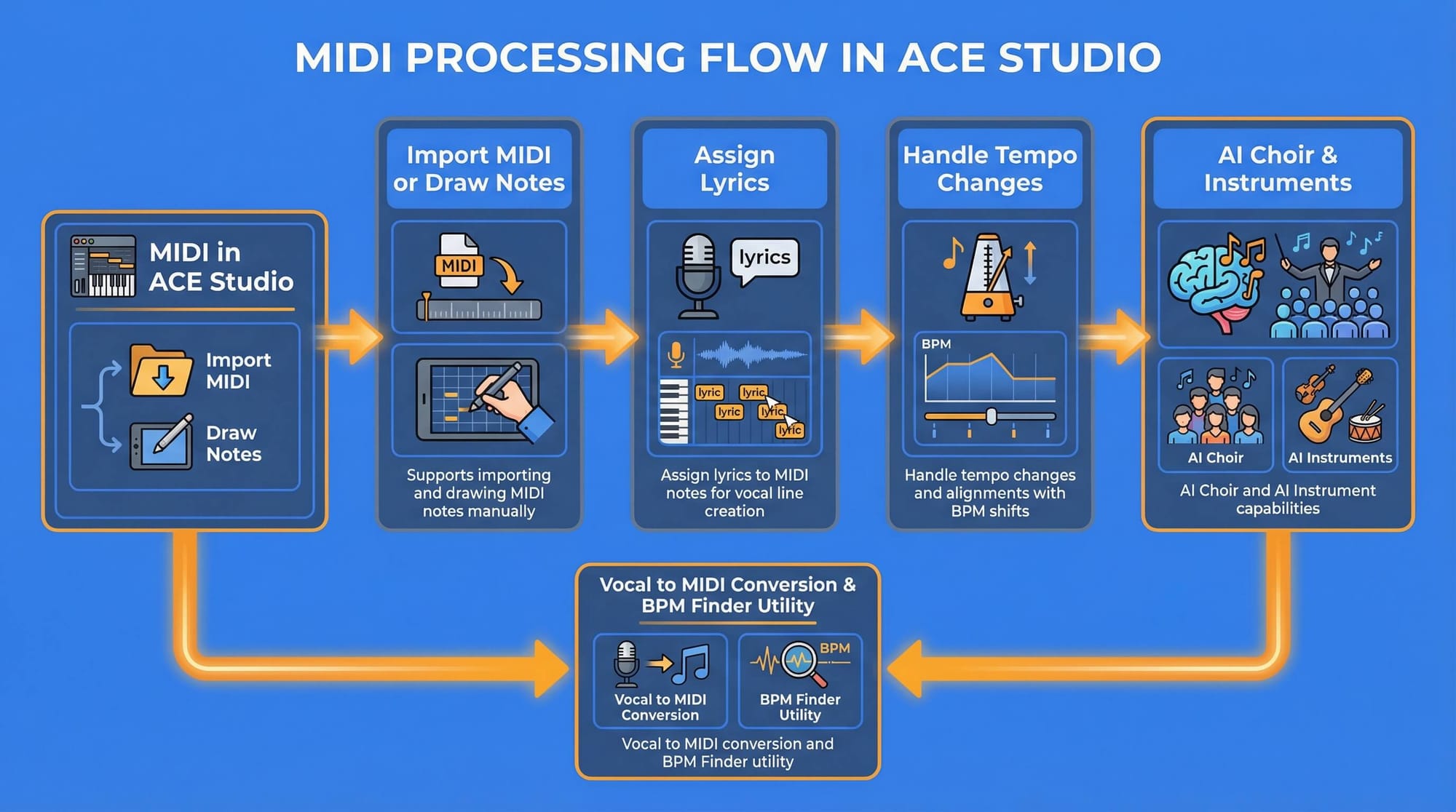
ACE Studio supports building performances directly from MIDI and lyrics: you can import an existing MIDI file or draw notes manually, then assign lyrics to those notes so the vocal line follows your written melody and rhythm.
A detail worth remembering: overlapping notes on the same track can cause messy results, so keeping MIDI clean helps the engine interpret phrasing predictably.
Tempo handling that stays aligned
If you’re working with tempo changes, ACE Studio can place tempo tags at different points in the timeline for instant BPM shifts, and exported stems stay aligned when brought into a DAW at the same BPM. Gradual tempo ramps aren’t supported natively, so those are typically handled in the DAW and synced.
When importing MIDI, ACE Studio can also apply the tempo and time signature from the MIDI file, which is useful for anything with non-standard meters or changing sections.
Not only vocals – choir and AI instruments
ACE Studio’s toolset includes AI Choir (generate chorals from MIDI and lyrics) and AI Instrument capabilities for generating instrument tracks, plus utilities like Vocal to MIDI (convert vocal into MIDI and lyrics) and a BPM Finder for tempo analysis.
For producers who want to mock up strings without loading huge sample libraries, the AI violin is designed to interpret MIDI input with performance nuance, and can be integrated with DAWs using the ACE Bridge plugin.
ACE Studio also supports importing and exporting MIDI, alongside dedicated MIDI track concepts inside the app’s track system.
And on the practical side, ACE Studio prioritizes privacy and security for uploads and generated performances, including encrypted handling and GDPR-aligned standards.
The big takeaway: MIDI lets you specify intent, ACE Studio helps translate intent into editable performance – and you stay the one deciding what’s musical.
MIDI 1.0 vs MIDI 2.0
MIDI 1.0 is the classic standard most gear supports. It’s reliable, simple, and everywhere.
MIDI 2.0 expands the idea with higher resolution and richer expression. The biggest practical improvements include:
- More detailed control (higher-resolution messages)
- Per-note expression (useful for expressive controllers and nuanced performances)
- Profiles and property exchange (devices can describe what they support more clearly)
Here’s the real-world truth: you don’t need MIDI 2.0 to make great music. But if you’re using expressive controllers or want smoother, more detailed automation, MIDI 2.0 is a step forward. Adoption is gradual – so most producers still live comfortably in MIDI 1.0 with modern workflow tricks.
Common MIDI problems and fixes
MIDI device not recognized
Typical fixes:
- Unplug/replug the USB cable
- Try a different port (avoid unpowered hubs if possible)
- Restart the DAW
- Confirm the device is enabled in MIDI settings
- Update driver/firmware if required
If it’s a class-compliant controller, it should usually “just work,” but OS permissions can still block it.
No sound from MIDI
Remember: MIDI is data. No sound means one of these is missing:
- No instrument loaded
- Track input isn’t routed correctly
- Monitoring is off
- Output is going to the wrong device
- Volume on the instrument/mixer is down
A quick test: draw a note in the piano roll. If it still makes no sound, it’s not your playing – it’s your routing.
Latency and timing issues
Latency is mostly about buffer size and monitoring:
- Lower buffer for recording
- Higher buffer for mixing
- Use direct monitoring when tracking audio
- Keep heavy plugins off the record chain
For MIDI timing, also check if your controller or plugin is adding delay compensation weirdness. Some DAWs let you offset MIDI track timing to compensate.
MIDI FAQ
Is MIDI sound or data?
MIDI is data. It’s the performance plan, not the recording. The sound comes from whatever instrument receives the MIDI.
Can MIDI control any instrument?
MIDI can control any instrument that understands MIDI – hardware synths, samplers, drum machines, and software plugins. For acoustic instruments, MIDI can still be used to control sampled versions, modeling instruments, or performance systems (like triggering articulations and dynamics).
Is MIDI still relevant today?
Yes, because nothing else is as editable for musical intent. Even when you’re using audio-first workflows, MIDI is still the fastest way to:
- sketch ideas
- arrange
- audition sounds
- keep options open until you commit
Modern tools haven’t replaced MIDI – they’ve mostly made MIDI even more central.
Is MIDI hard to learn?
Not really. The learning curve is mostly about routing and the first-time setup. Once you understand “MIDI is control data,” everything clicks. Start simple: one controller, one instrument, one track – then add layers.